How to Format a Children’s Book for Amazon KDP
Formatting a children’s book for Amazon KDP can be confusing—especially when your book includes illustrations, text layouts, full-bleed pages, or mixed story + activity sections. But once you understand the structure KDP expects, it becomes much easier to publish clean, professional storybooks that look great in print.
This guide walks you through the simplest and most updated way to format a children’s book for KDP in 2025.
Step 1: Choose the Right Trim Size
The trim size is the final printed size of your book. Children’s books commonly use:
- 8.5 x 8.5 (square, very popular)
- 8 x 10 (classic picture book)
- 8.5 x 11 (storybook + workbooks)
- 7 x 10 (chapter-style kids’ books)
If your artwork is already created, choose the size that fits your illustrations best. If you are still planning your book, KDPFast can help by applying the template sizes instantly.
Step 2: Decide Between Bleed or No-Bleed
Bleed = your illustrations go to the very edge of the page.
No Bleed = your images and text stay inside the white borders.
Most modern children’s books use full bleed, especially if the artwork fills the page. KDPFast automatically sets correct bleed margins for every trim size so you don’t make mistakes.
Step 3: Structure Your Pages Correctly
A professional children’s book usually follows this order:
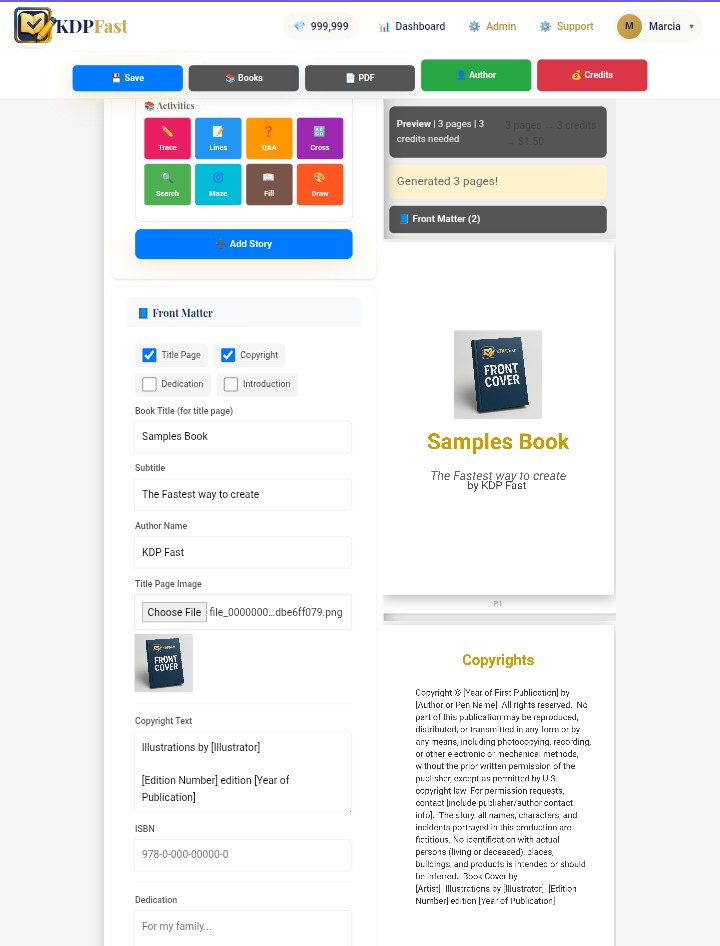
- ✓ Title Page
- ✓ Copyright Page
- ✓ Dedication (optional)
- ✓ Story Pages (full illustrations + text)
- ✓ Bonus pages (activities, notes, vocabulary, etc.)
If your story includes multiple scenes or chapters, KDPFast’s story organizer can structure everything automatically so no pages get misplaced.
Step 4: Set Safe Margins for Text
This is where most beginners make mistakes.
Children’s books usually include text over illustrations, and if the text sits too close to the edge, it gets cut off during printing.
Use:
- 0.25” safety margin on all sides for full-bleed illustration pages
- 0.5” margins if you have text-only sections
KDPFast automatically positions text inside the safe zones so everything prints cleanly.
Step 5: Prepare Your Illustrations Correctly
Your images should follow these rules:
- ✔ 300 DPI minimum (required for quality)
- ✔ Exported as PNG or JPG
- ✔ Sized exactly to your trim (e.g., 8.5 x 8.5 at 300 DPI)
If your image is smaller than the trim, stretching it will look blurry. With KDPFast, illustrations are scaled automatically without distortion.
Step 6: Keep Your Typography Simple
Children’s books should use fonts that are:
- Clear
- Strong
- Legible
Great choices include:
- Futura
- Avenir
- Comic Neue
- Poppins
- Open Sans
Avoid fonts that are overly curly or thin—they disappear in print.
Step 7: Export as a KDP-Ready PDF
Your final interior should be exported as:
- PDF (Print-ready)
- Single pages, not spreads
- Correct bleed settings
- Embedded fonts
KDPFast automatically generates approved PDFs using your trim and margin settings, so you don’t have to configure anything manually.
Step 8: Upload Your Interior & Cover
In KDP, you’ll upload:
- Your interior PDF
- Your full wrap cover (front, spine, back)
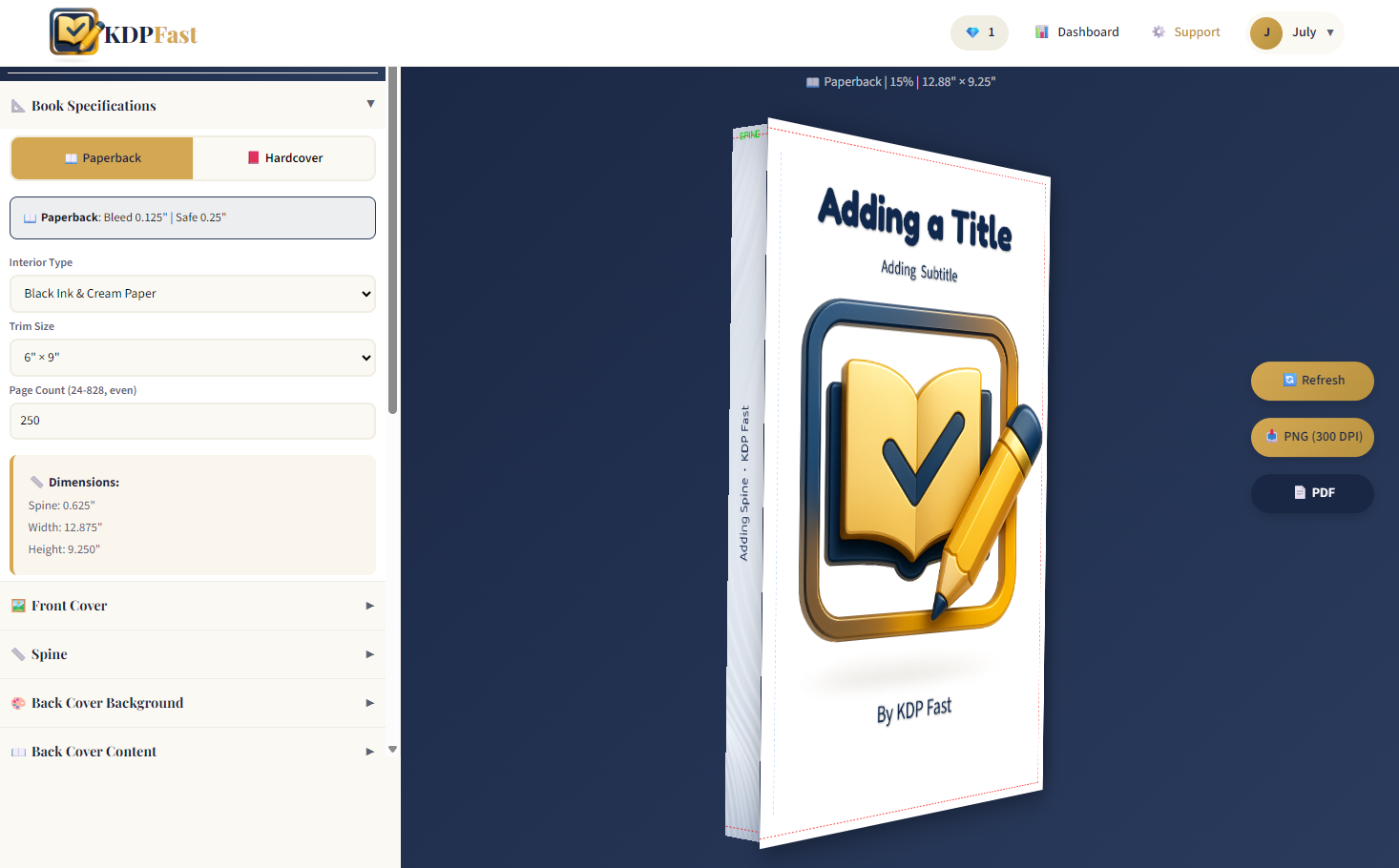
If your book is under 79 pages, KDP will not add spine text. KDPFast’s Cover Creator calculates your spine width automatically so the cover fits perfectly.
Optional: Add Activity Pages
Many successful children’s books now include:
- Mazes
- Trace pages
- Coloring pages
- Vocabulary pages
- Comprehension questions
KDPFast can generate these instantly and place them anywhere in your story structure.
Formatting a children’s book for Amazon KDP doesn’t have to be difficult. Whether you’re creating a picture book, illustrated story, early reader, or hybrid activity-storybook, the process follows a simple structure.
With tools like KDPFast handling margins, trim sizes, bleed, illustration placement, and page generation, creators can now produce beautiful children’s books in a fraction of the time.
Create confidently. Format correctly. Publish faster.